Mavri Get started

How to use Mavri, screen by screen.

A complete walkthrough of the app with all 21 screens: from installing and creating your account to sending your first invoice, tracking payments and backing up.

Based on the project guide for Mavri 2.1 · Updated 15 October 2026

Install Mavri

The quickest route is one command: it installs Docker if you need it, downloads Mavri and starts it. Home-server users can install through CasaOS or ZimaOS.

curl -fsSL https://raw.githubusercontent.com/Raktim94/mavri/main/scripts/quickstart.sh | bash

Installs Docker Desktop and git with Homebrew if either is missing, then downloads and starts Mavri. No Homebrew yet? The script tells you how to get it.

curl -fsSL https://raw.githubusercontent.com/Raktim94/mavri/main/scripts/quickstart.sh | bash

Installs Docker Engine (official script) and git if either is missing, then downloads and starts Mavri. Safe to run again.

irm https://raw.githubusercontent.com/Raktim94/mavri/main/scripts/quickstart.ps1 | iex

Sets up WSL2 with the Docker Engine, so no Docker Desktop, then downloads and starts Mavri. The first time, Windows may ask for one restart: restart and run the same command again.

Already have Docker and git? Run these instead:

git clone https://github.com/Raktim94/mavri.git
cd mavri
docker compose up -d --build

Then open http://localhost:3001. Full options: Get started · Install on CasaOS · Quick start with copy-paste commands.

Step 1 · 1 of 25

Create the owner account

The first visit asks for an email and a password. This becomes the owner account, so keep the details safe. The form checks the password as you type: at least 8 characters, with letters and numbers.

  • Setup works only once. After that the same page is a normal sign-in.
  • There is no Mavri-hosted account. This account exists only in your install.
  • Backups do not include accounts, so a fresh install needs its own owner account.
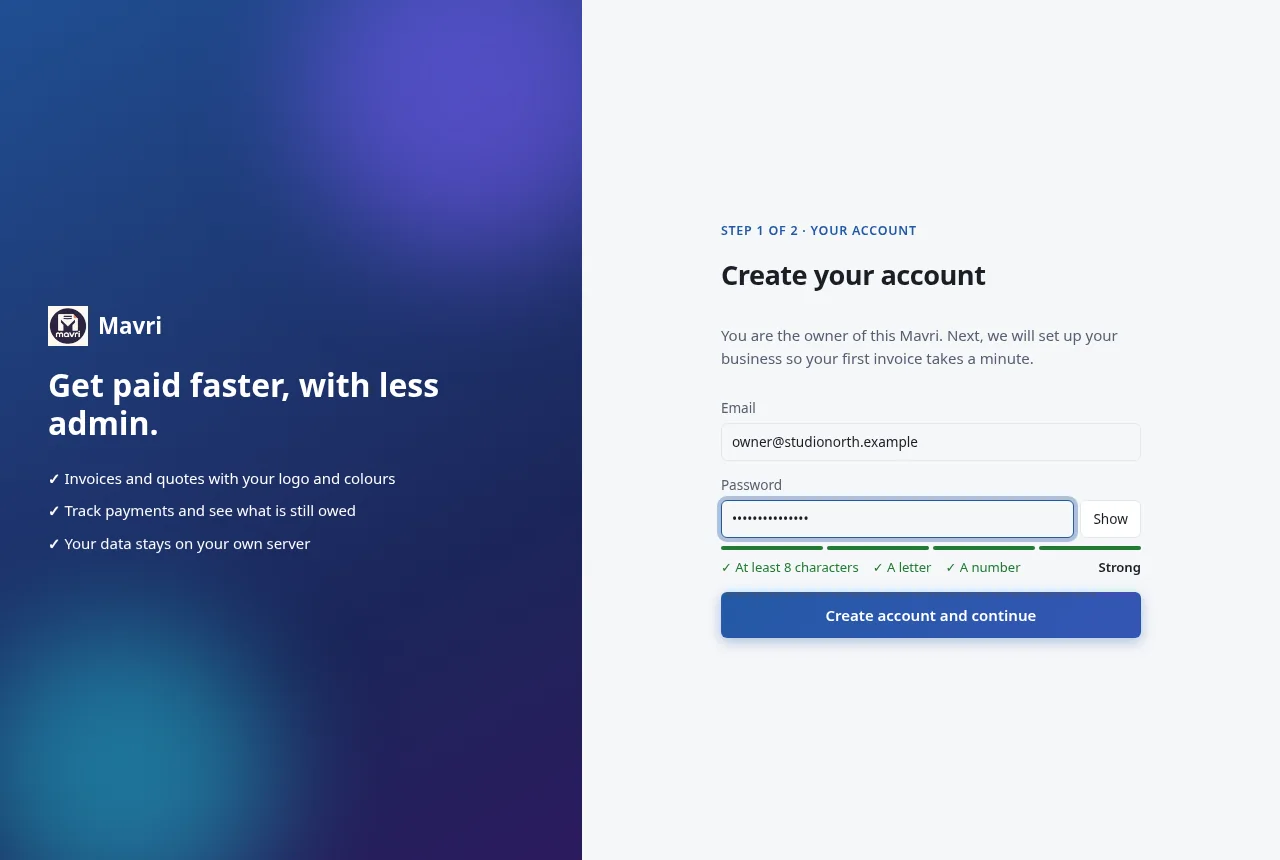
Creating the owner account, with live password checks. Fictional demo data.

Step 2 · 2 of 25

Follow the guided setup

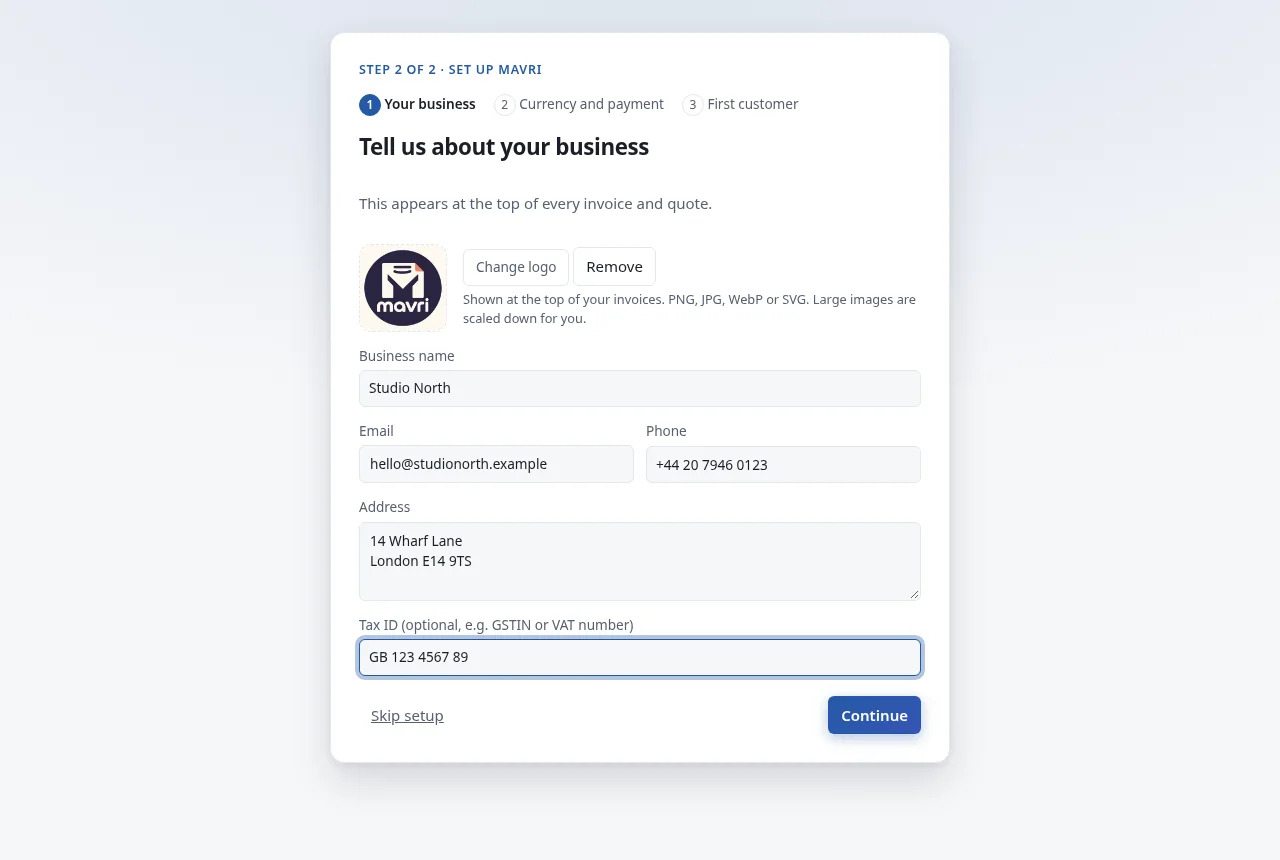
A short wizard follows: your business (with a logo if you have one), currency and bank details, and a first customer. Each step saves as you continue and every step can be skipped.

  • Logos accept PNG, JPG, WebP or SVG; large images are scaled down in the browser.
  • You can change everything later under Businesses, Currencies and Bank accounts.
The guided setup that follows account creation: business and logo, currency and bank, first customer. Every step can be skipped.

Home · 3 of 25

Read your dashboard

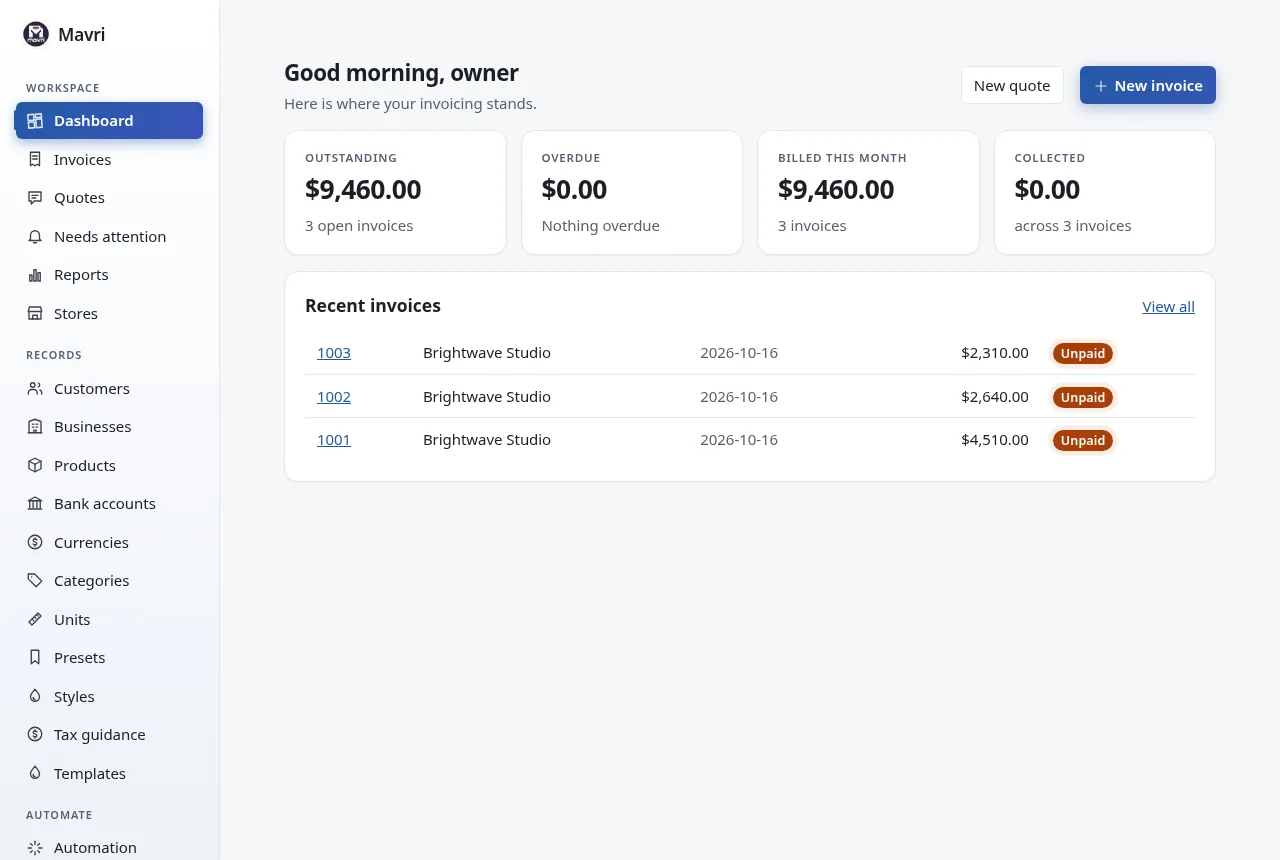
The dashboard shows four totals: Outstanding, Overdue, Billed this month and Collected, followed by your recent invoices with status badges. The left menu has three groups: Workspace, Records and System.

  • Use New invoice or New quote at the top right to start a document.
  • A setup checklist appears until the basics are in place.
  • The dashboard is your quick answer to “who owes me what?”.
Mavri dashboard with a setup checklist, outstanding, overdue and billed totals, and recent invoices. Fictional demo data.

Records · 4 of 25

Add the businesses that send invoices

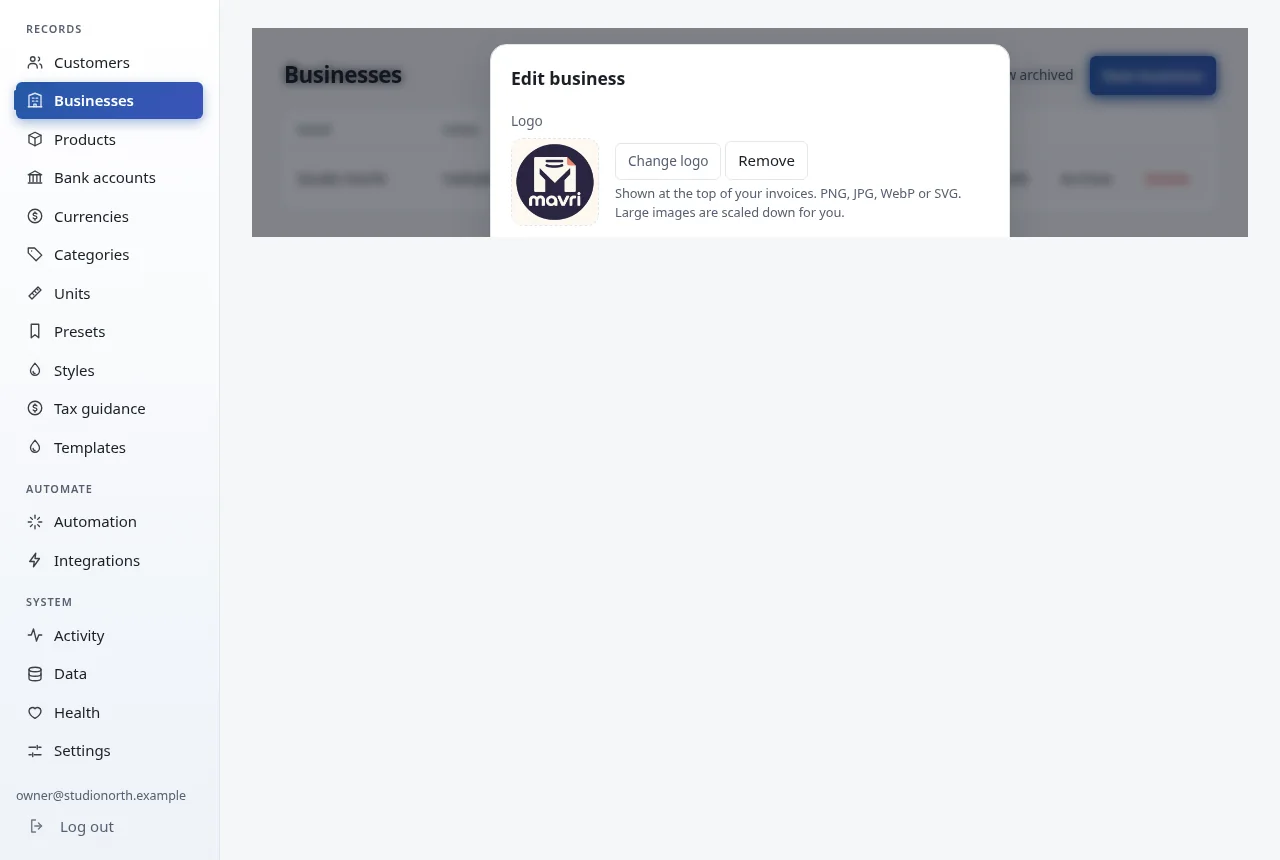
A business is who the invoice is from: name, address, email, phone, tax ID and logo. You can keep several businesses in one installation.

  • For UBL or XRechnung export, also add the country code, tax ID and e-invoice address.
  • Archive hides a business without breaking old invoices; delete is refused while it is in use.
Business profiles that issue invoices, with tax ID and e-invoice fields. Fictional demo data.

Records · 5 of 25

Keep your customers

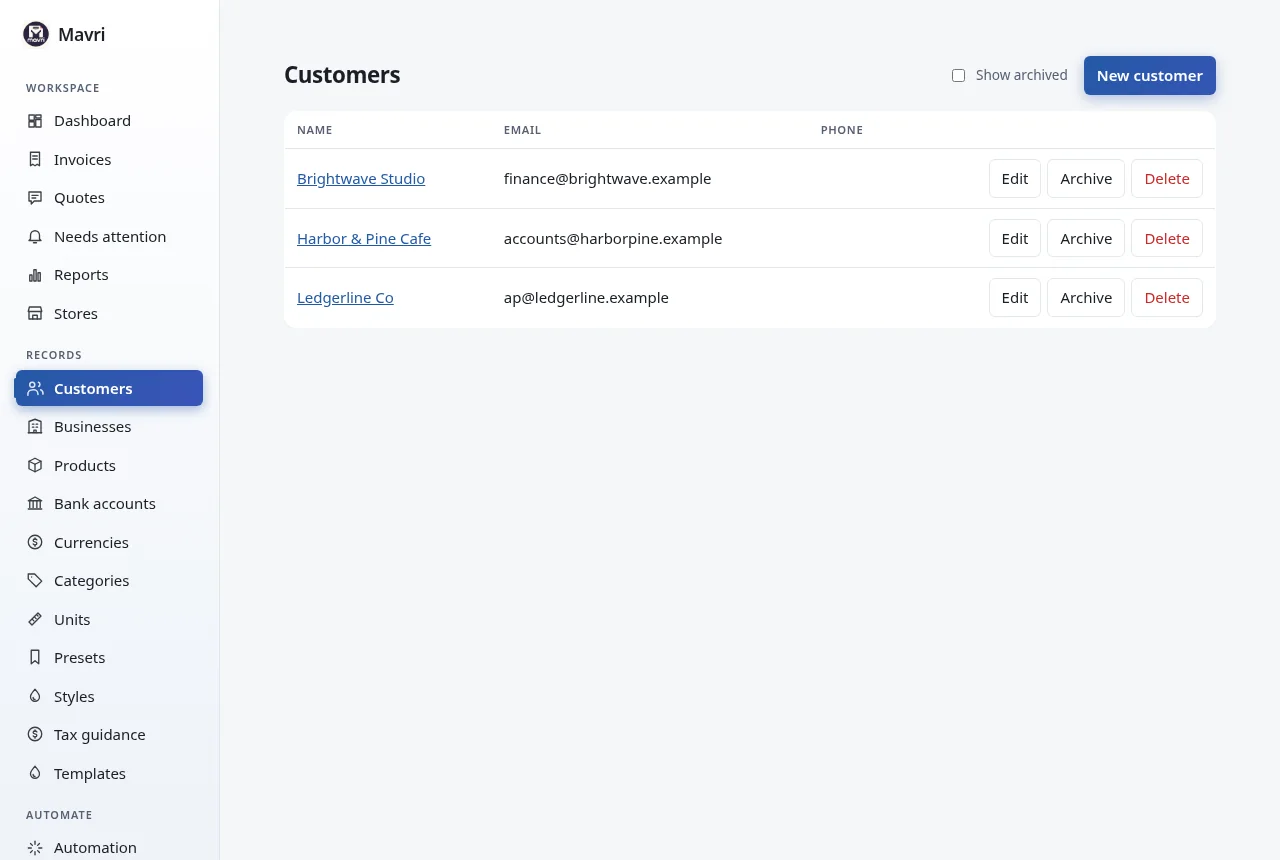
Customers are who you bill. Add an address, tax ID and country code for e-invoices, and a buyer reference if the customer requires one.

  • Every list has New, Edit, Archive and Delete.
  • Customers with the same email are reused when orders arrive through the API.
Customer records list with New, Edit, Archive and Delete actions. Fictional demo data.

Records · 6 of 25

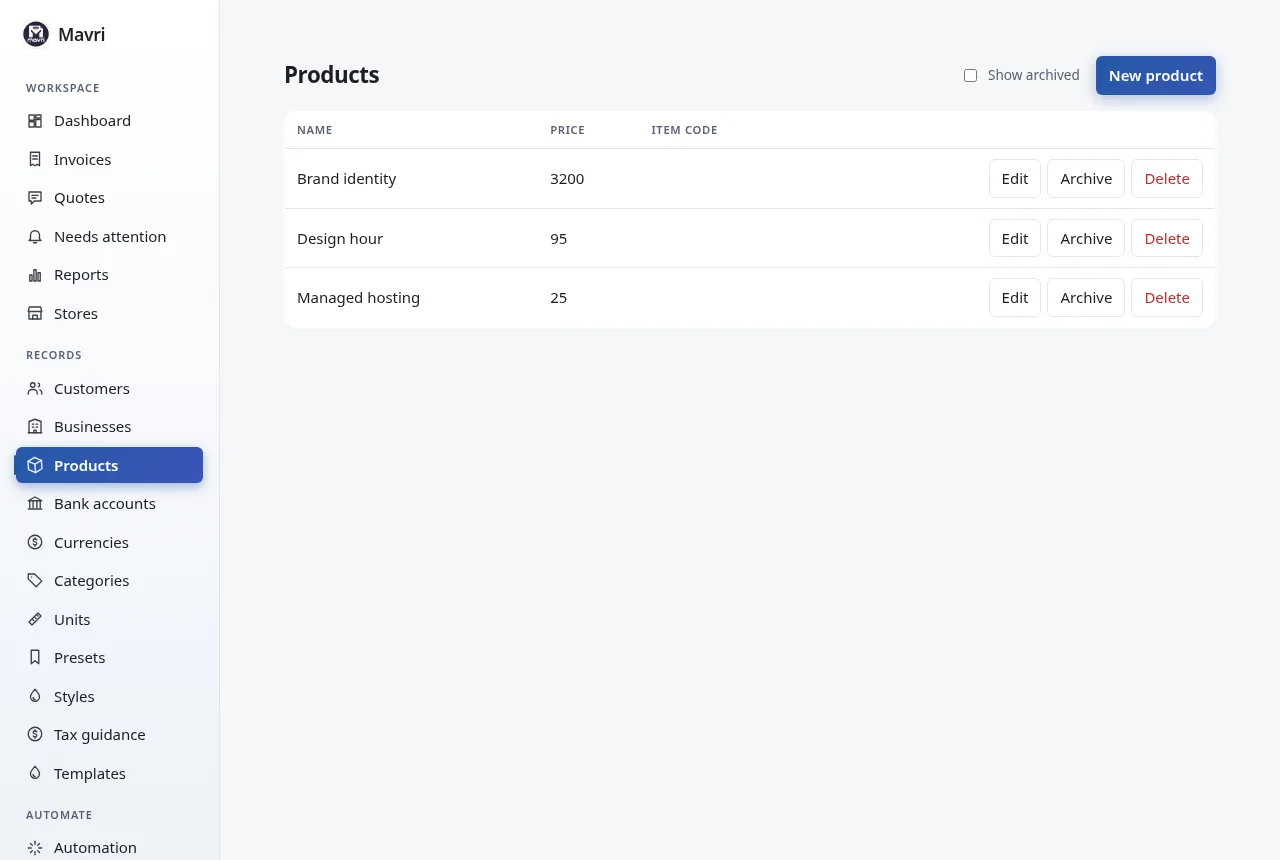
Build a product catalog (optional)

Products are things you sell, with a price, a category and a unit. Pick one when you make an invoice, or skip the catalog and type any line freely.

  • Prices are stored in whole minor units (cents) internally.
  • A catalog saves retyping descriptions and prices.
Optional catalog of items with price, category and unit. Fictional demo data.

Records · 7 of 25

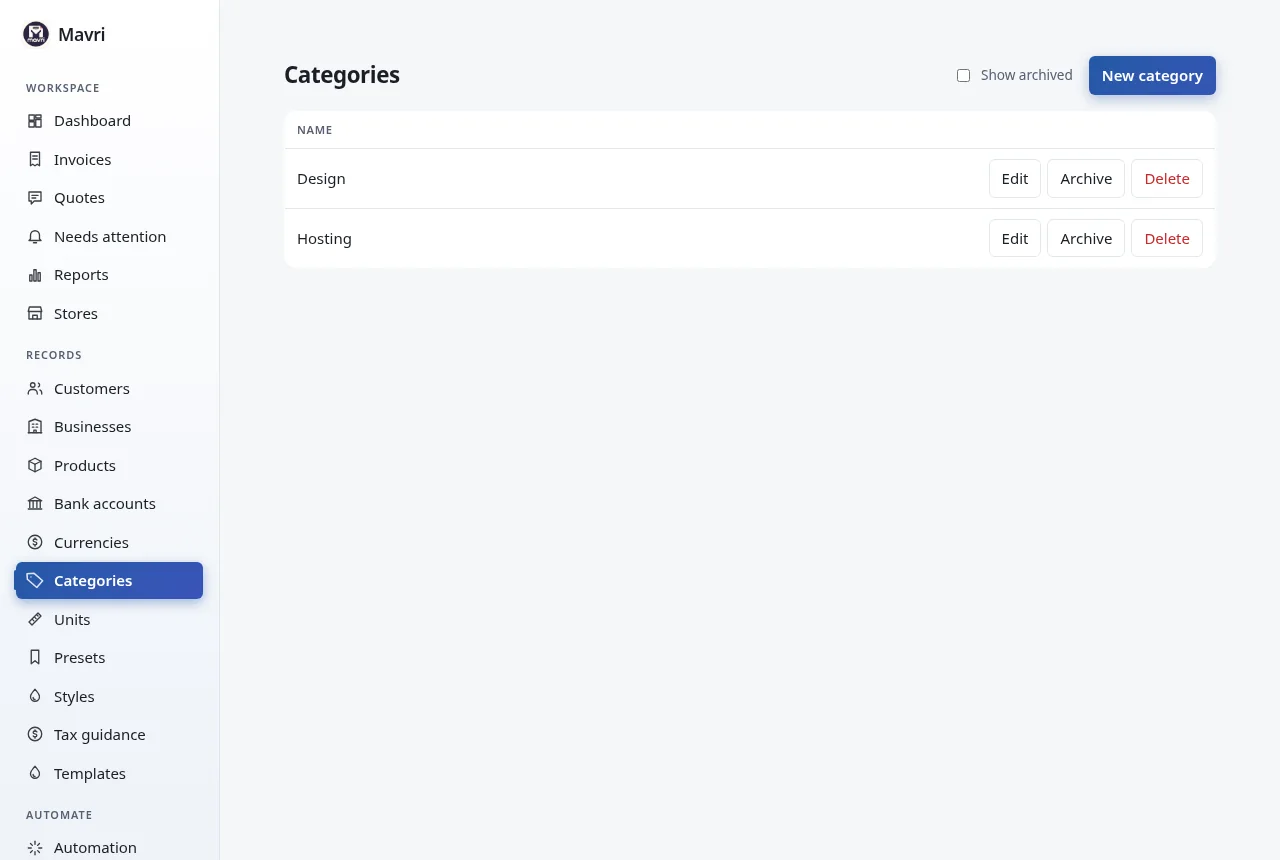
Organise with categories

Categories group your products so a longer catalog stays tidy.

  • Optional, and easy to add later.
Product categories list. Fictional demo data.

Records · 8 of 25

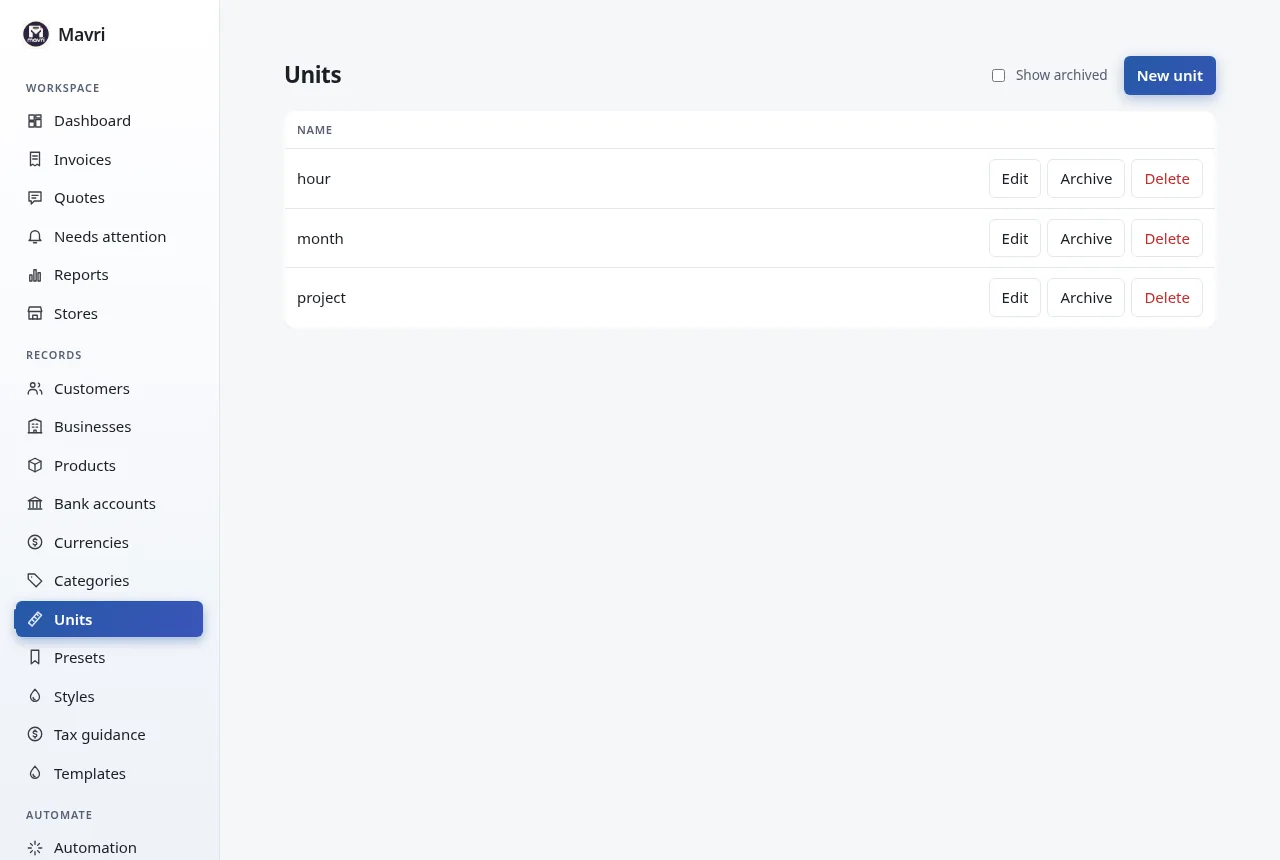
Set units of measure

Units such as hour, day or piece appear on invoice lines next to the quantity.

  • Add the units you actually bill in so lines read clearly.
Units of measure list. Fictional demo data.

Records · 9 of 25

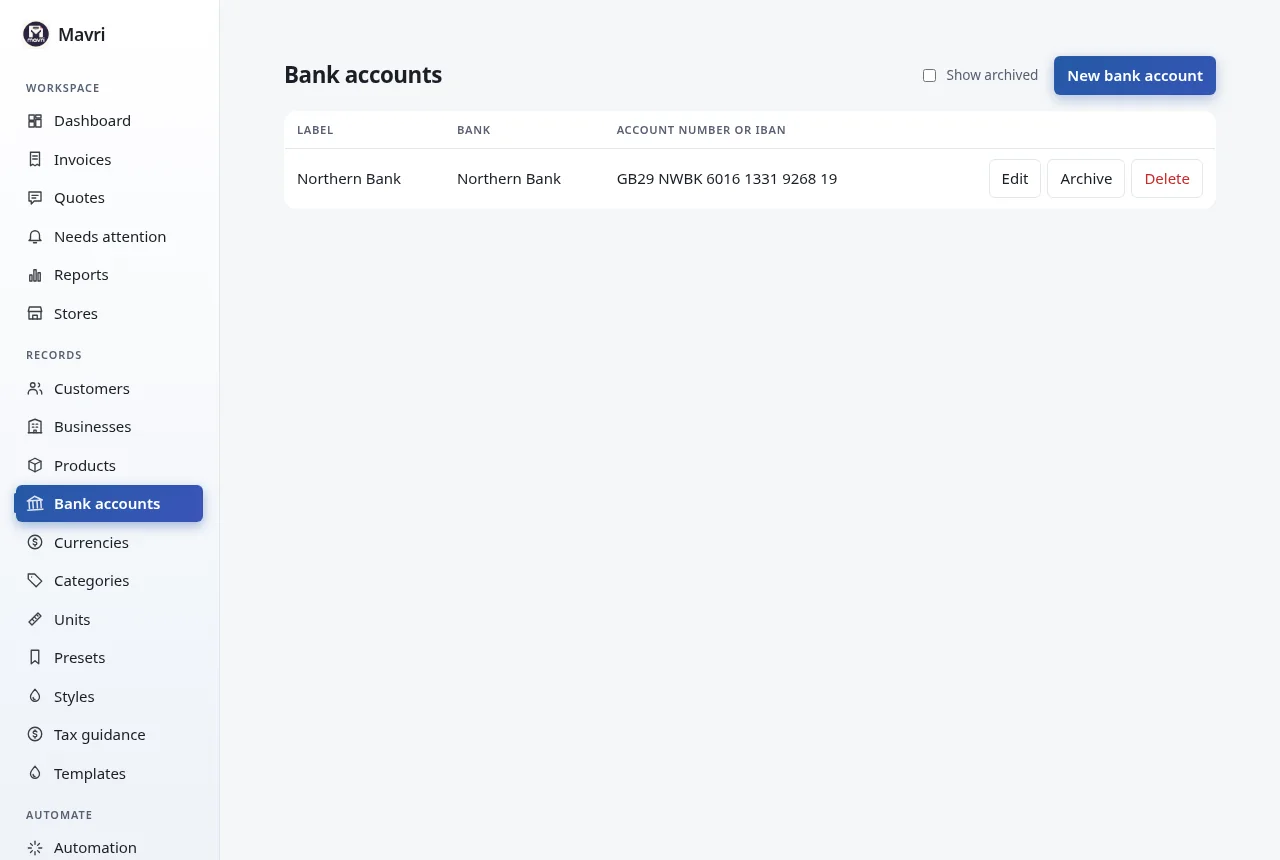
Add bank details

Bank accounts hold the payment details printed on your invoices, so clients know how to pay you.

  • Optional. Choose the account on each invoice.
  • Mavri prints the details; it does not move money.
Bank account details that can be printed on invoices. Fictional demo data.

Records · 10 of 25

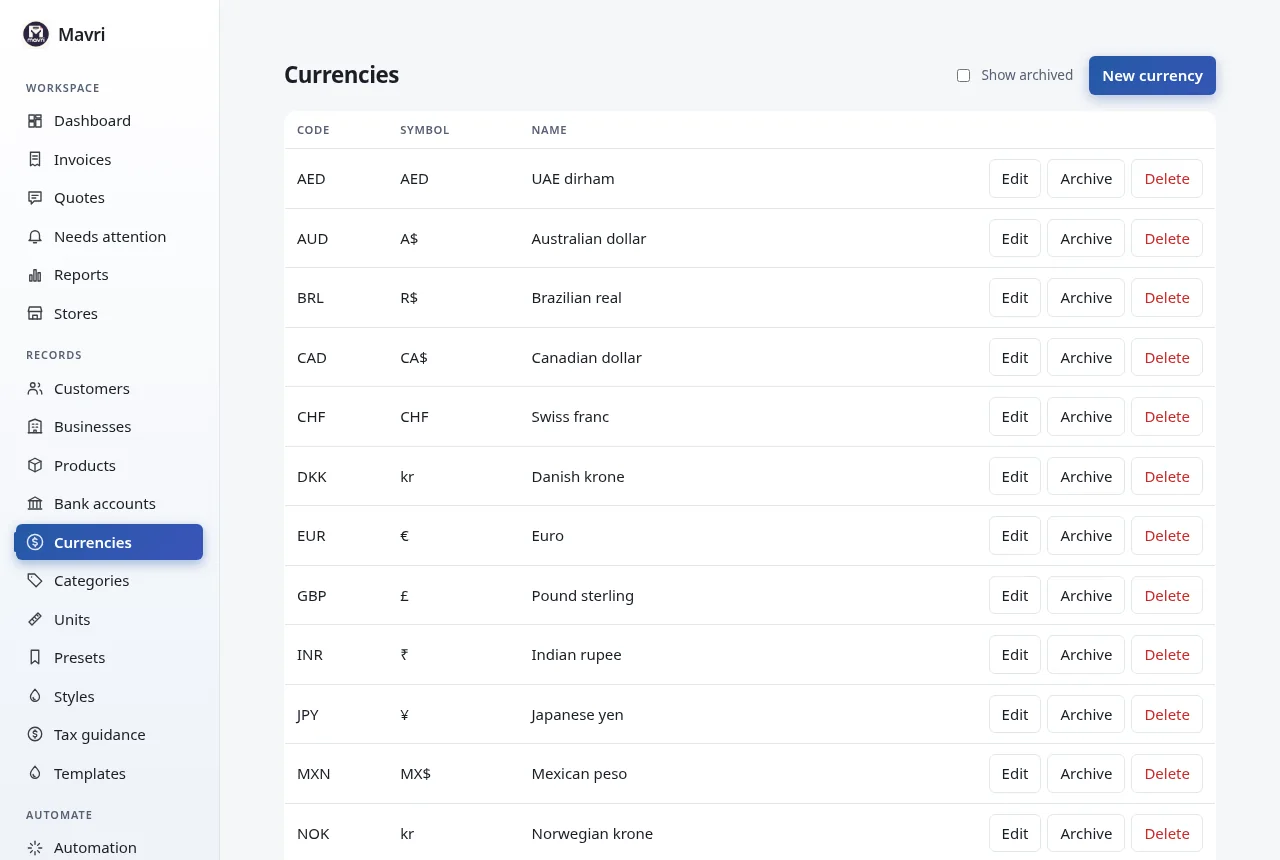
Choose currencies

Common currencies are already there. Add others with their symbol and a format such as {symbol}{amount}.

  • Each document uses one currency, and reports keep totals per currency.
Currency list with symbols and display formats. Fictional demo data.

Workspace · 11 of 25

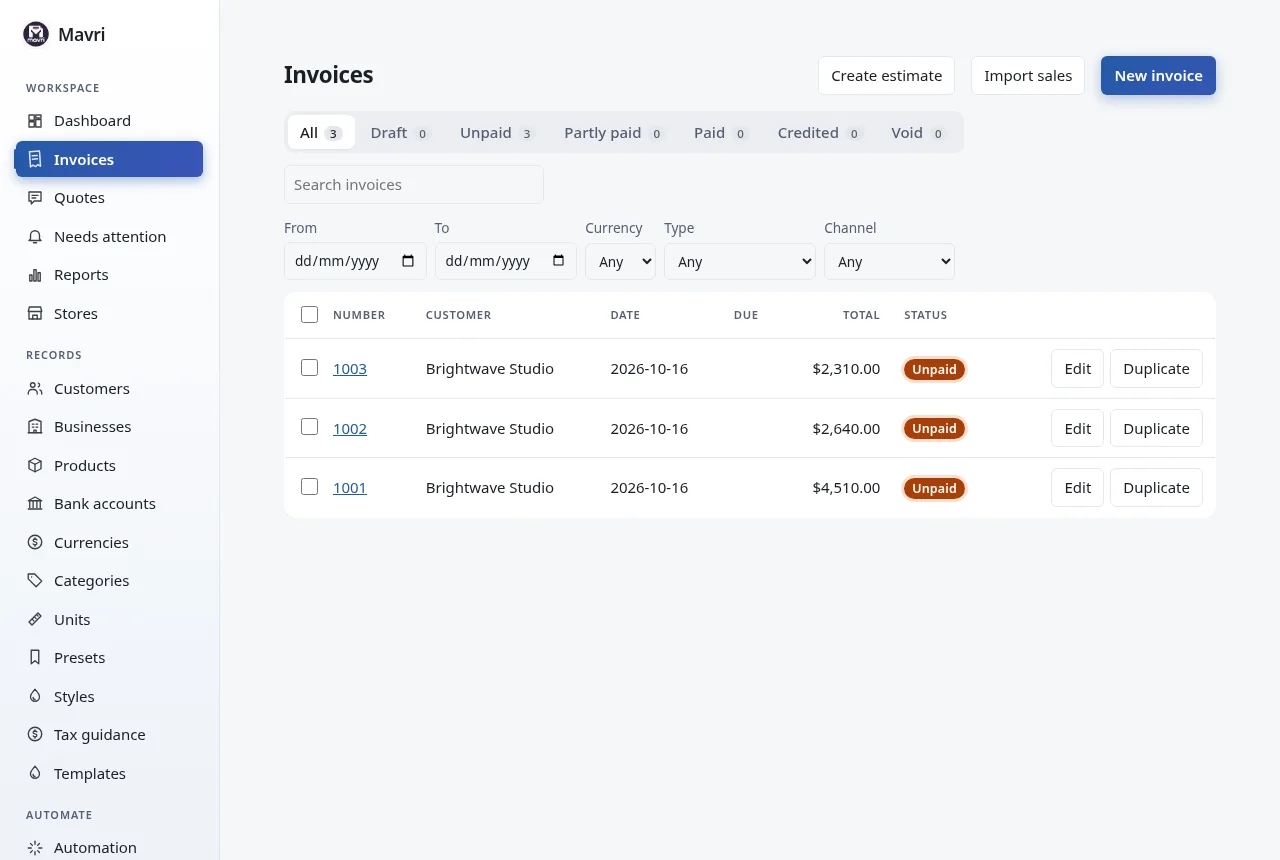
Track invoices

The invoice list has status tabs with counts and flags for overdue invoices. Search by number or customer name, and open any invoice to see its payments.

  • Statuses: Unpaid, Partly paid, Paid and Void.
  • Numbers are unique per business, kind, prefix and suffix.
Invoice list with status tabs and counts, and overdue flags. Fictional demo data.

Workspace · 12 of 25

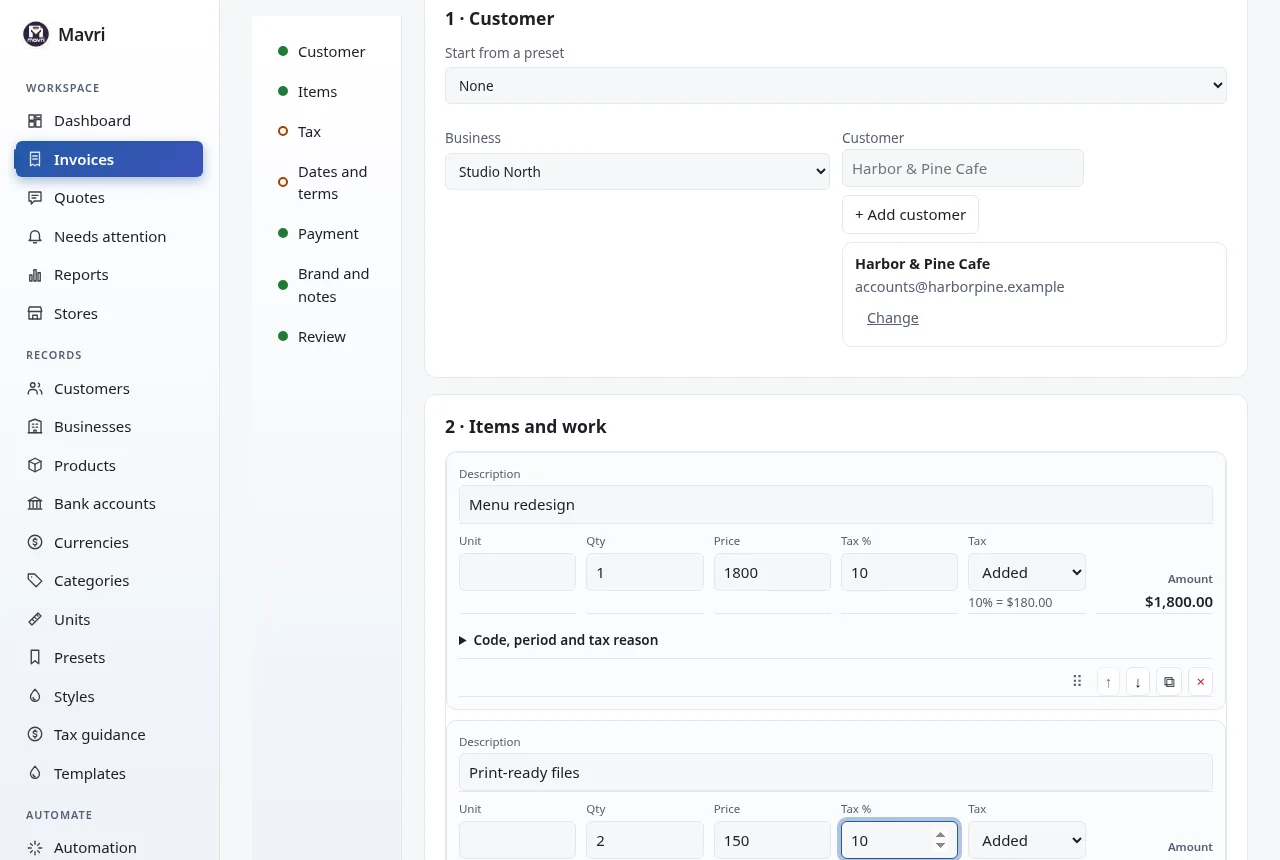
Make an invoice

Go to Invoices → New invoice. One page, in seven sections: customer, items, tax, dates and terms, payment, brand and notes, and a review, with a live preview beside it.

  • Pick a product or type a description; set quantity, price and tax.
  • Tax can be Added on top or Included in the price; at document level it can also be Withheld.
  • Add a discount, a surcharge or shipping if needed, then notes, terms or a thank-you line.
  • Use Start from a preset and Style to fill things in faster.
Invoice editor with business, customer, currency, dates, line items, tax, discount and notes. Fictional demo data.

Workspace · 13 of 25

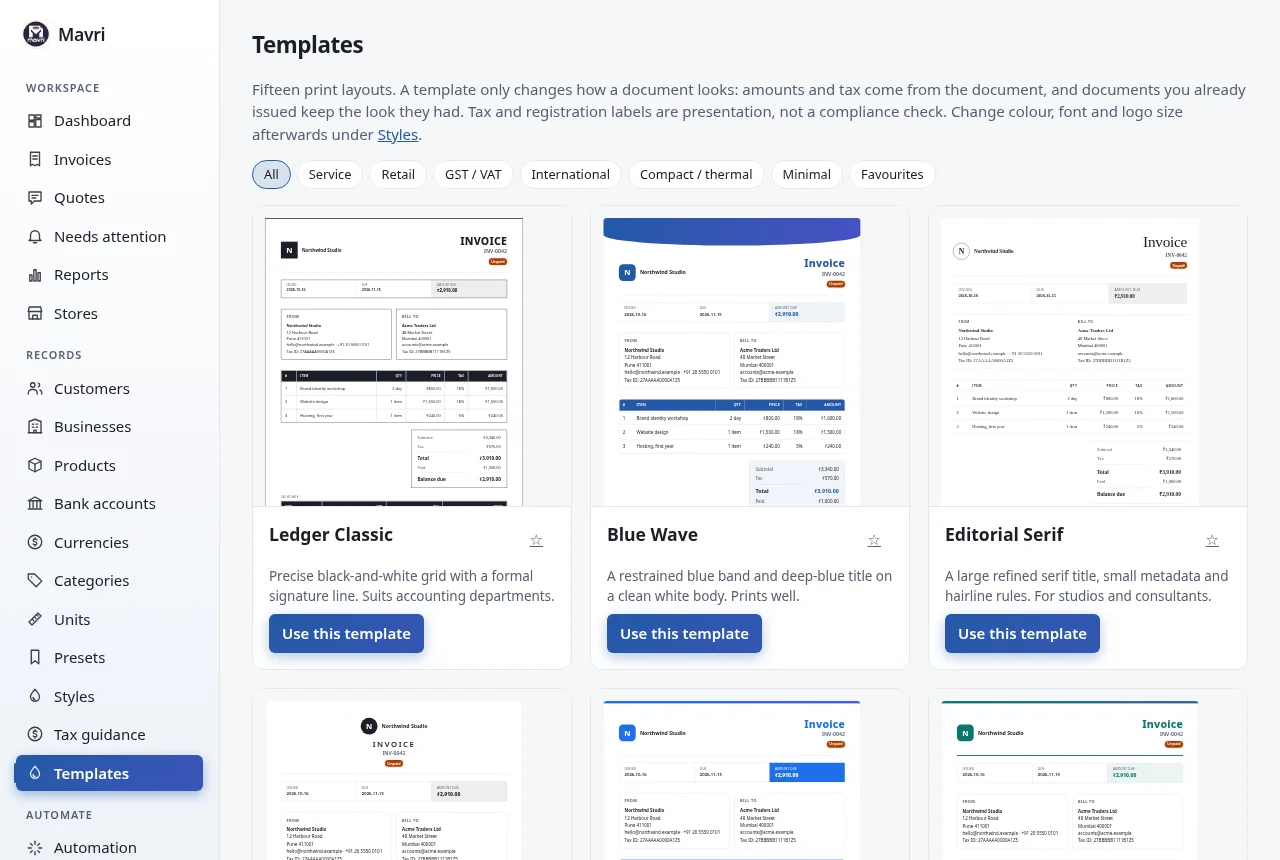
Pick a template

Templates has fifteen print layouts, from a plain ledger grid to GST, VAT and thermal receipts. Open one to see it with sample data, then choose Use this template.

  • A template only changes how a document looks, never its amounts.
  • Labels such as GSTIN or TRN are presentation, not a compliance check.
The template gallery: fifteen print layouts with sample data, filters and favourites. Fictional demo data.

Workspace · 14 of 25

Chase what is owed

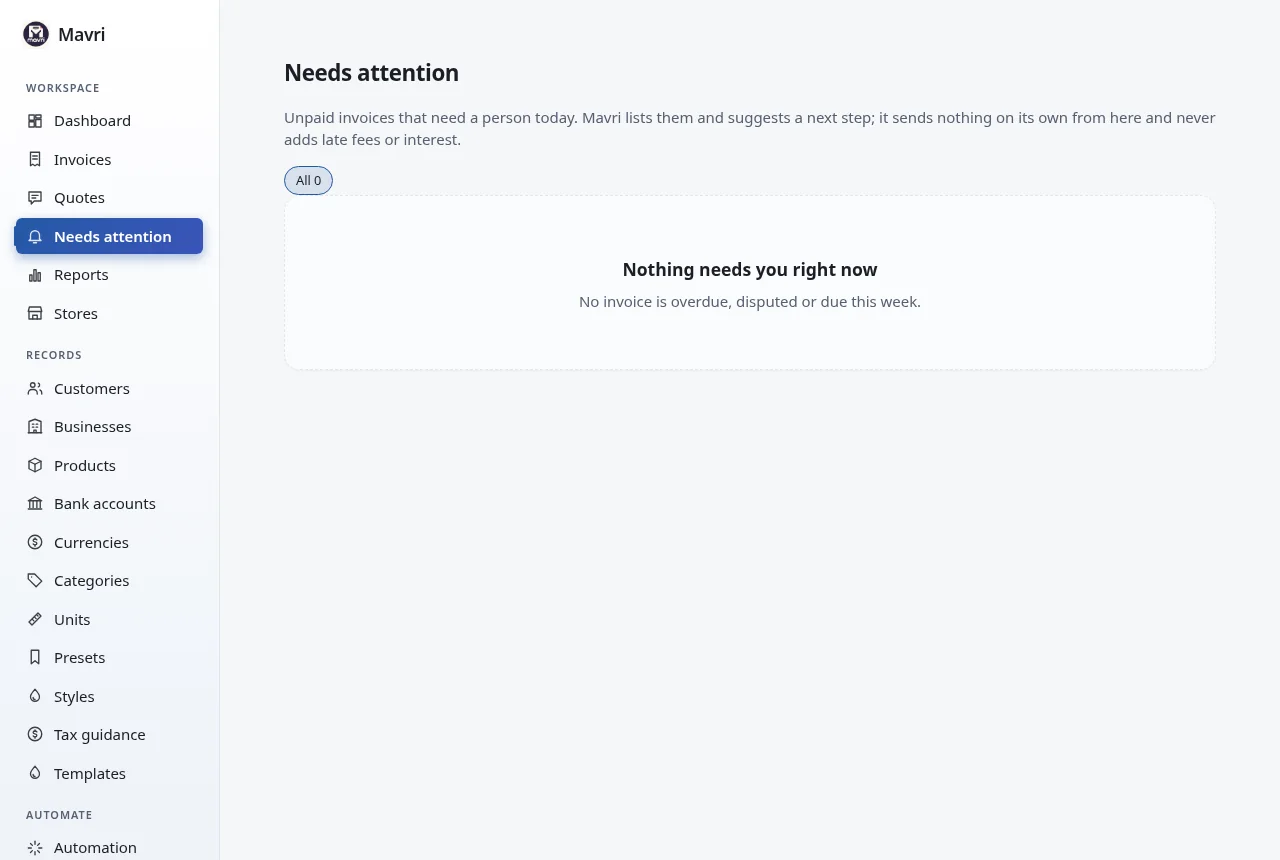
Needs attention lists unpaid invoices that need a person today, most urgent first, with the reason and a suggested next step. On an invoice, record a promise to pay, a dispute or a pause.

  • Mavri sends nothing from this list and never adds late fees.
  • A dispute, a pause or a promise that is not due yet stops automatic reminders for that invoice.
The daily list of unpaid invoices that need a person, with why and a suggested next step. Fictional demo data.

Workspace · 15 of 25

See a customer’s money

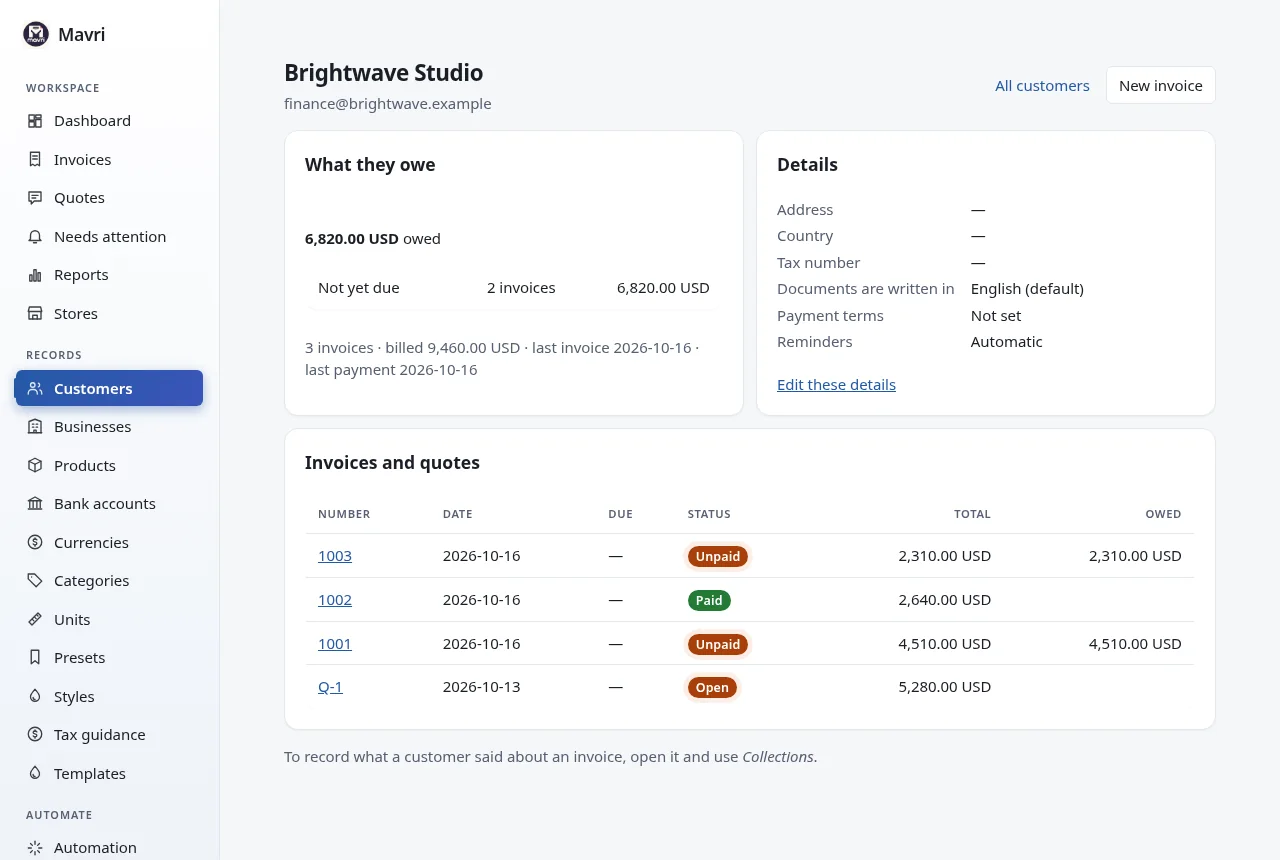
Click a customer’s name for their page: what they owe by how late it is, their last invoice, payment and contact, open follow-ups and every invoice. For an EU customer, Check with VIES asks the European Commission’s service whether their VAT number is active.

  • Mavri only asks VIES when you press the button, and keeps the answer with who gave it and when.
  • Under Data you can also match a bank statement to unpaid invoices; you confirm every match.
A customer page: what they owe by how late it is, last invoice, payment and contact, and all their invoices. Fictional demo data.

Workspace · 16 of 25

Read the tax guidance

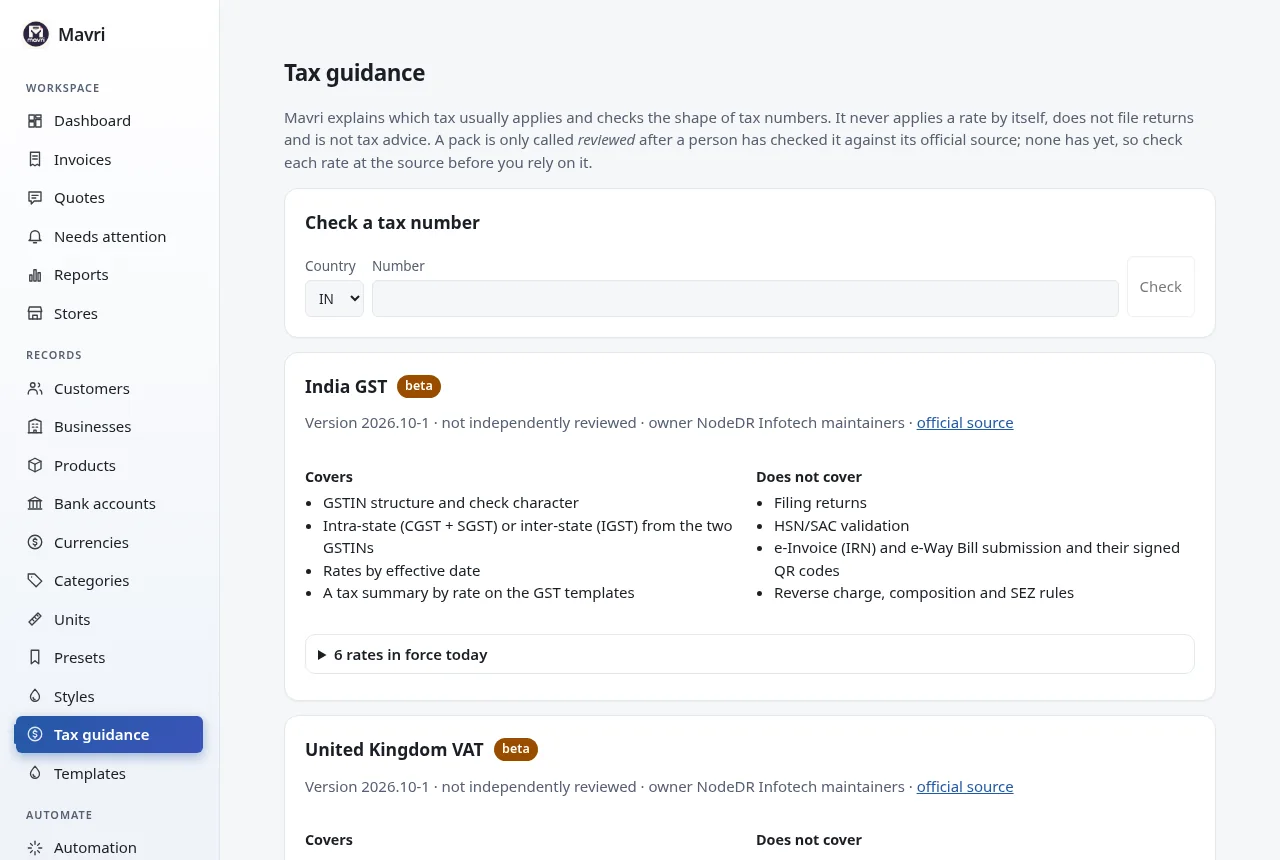
Tax guidance shows what Mavri knows about India GST, UK VAT, EU VAT, UAE VAT and US sales tax, where each comes from, and what it does not cover. You can check a tax number too.

  • It guides; it never applies a rate and files nothing.
  • No pack has been reviewed by a person yet, and the page says so.
Tax guidance packs with status, source, what each covers and does not cover, and a tax number checker.

Workspace · 17 of 25

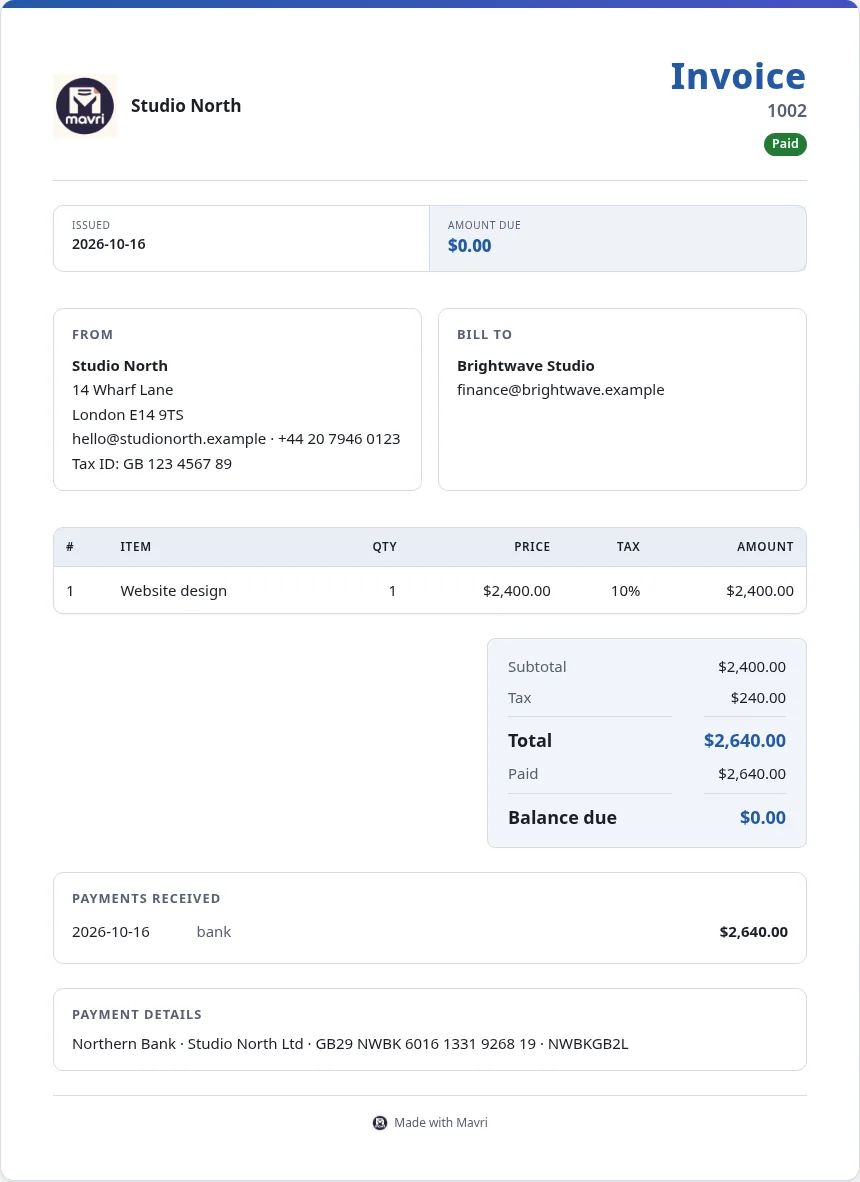
View, print or save as PDF

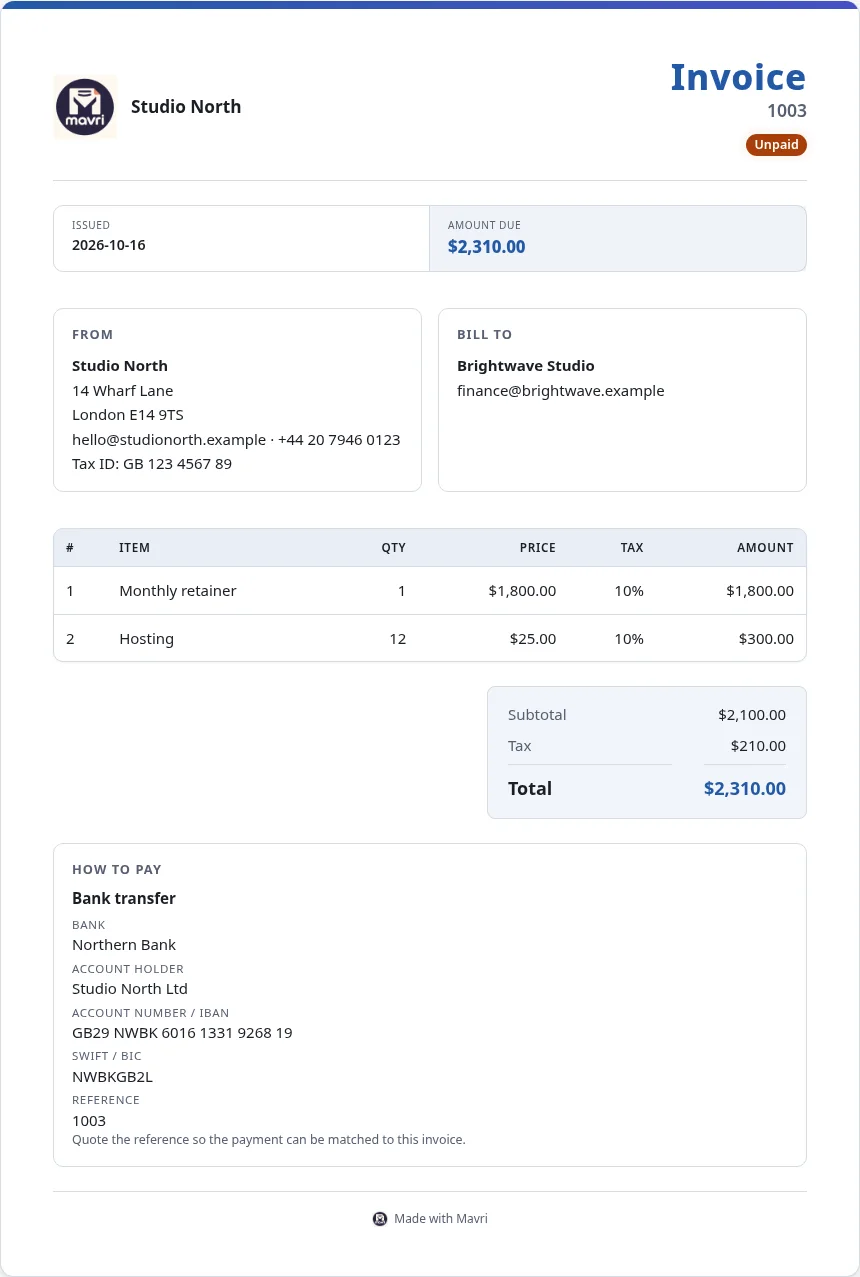
Open an invoice to see it as your client will. Print / save as PDF uses your browser’s print dialog: choose Save as PDF as the printer. UBL XML and XRechnung XML download electronic invoices.

  • If a required e-invoice field is missing, Mavri says which one.
  • Changes to a business or customer do not alter existing documents; tick Update details from their records when editing to copy them again.
  • Mavri does not email invoices. Send the file yourself.
A printable Mavri invoice with a logo, the amount due and a Made with Mavri footer. Fictional demo data.

Workspace · 18 of 25

Record payments

Add each payment on the invoice. The status becomes Partly paid or Paid by itself, and a paid invoice shows the payment and a zero balance. Void cancels an invoice.

  • Mavri tracks payments you record; it does not collect them.
A paid invoice showing the recorded payment and a zero balance. Fictional demo data.

Workspace · 19 of 25

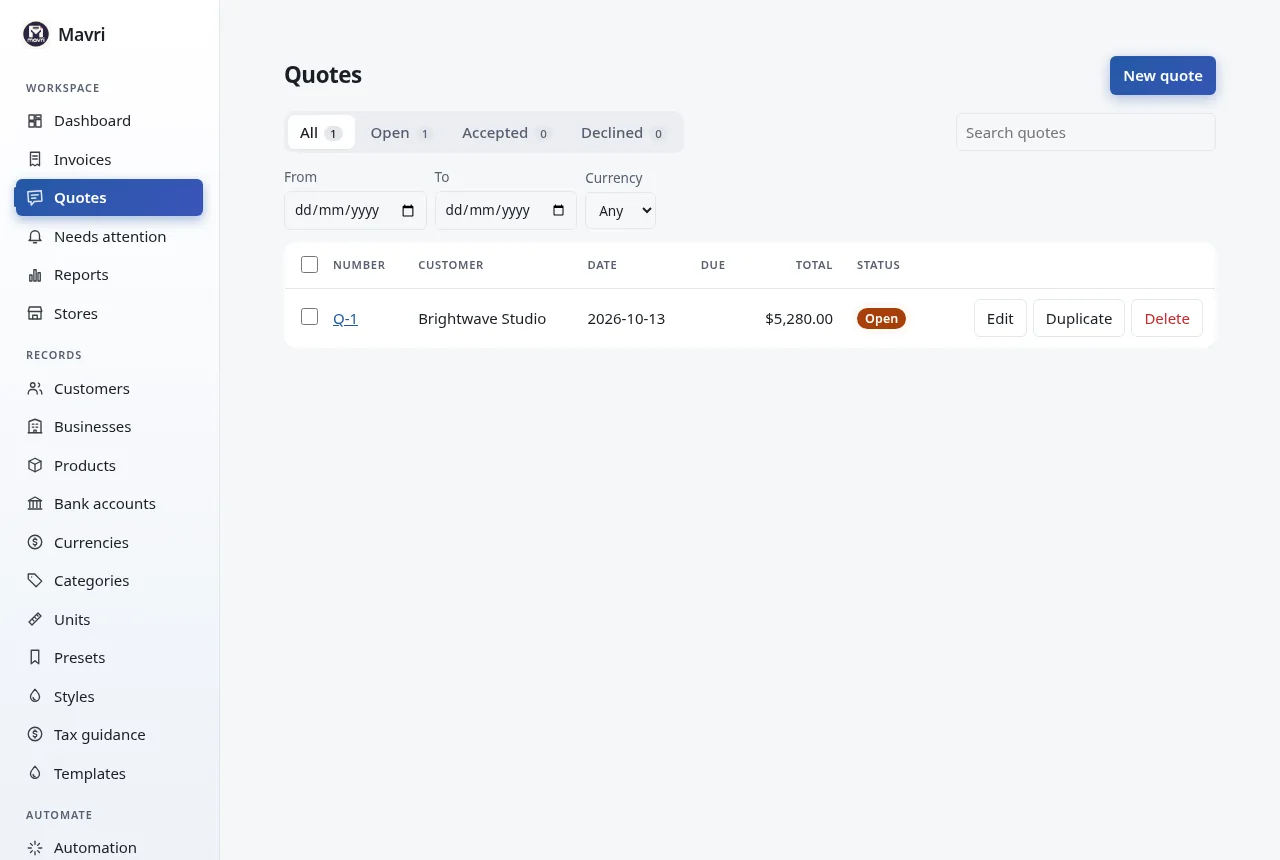
Create and convert quotes

Quotes work like invoices. When a customer accepts, open the quote and choose Convert to invoice; the quote becomes Accepted.

  • Quote statuses: Open, Accepted, Declined.
  • Quote numbers use their own prefix, set in Settings.
Quote list showing open, accepted and declined quotes. Fictional demo data.

Speed-ups · 20 of 25

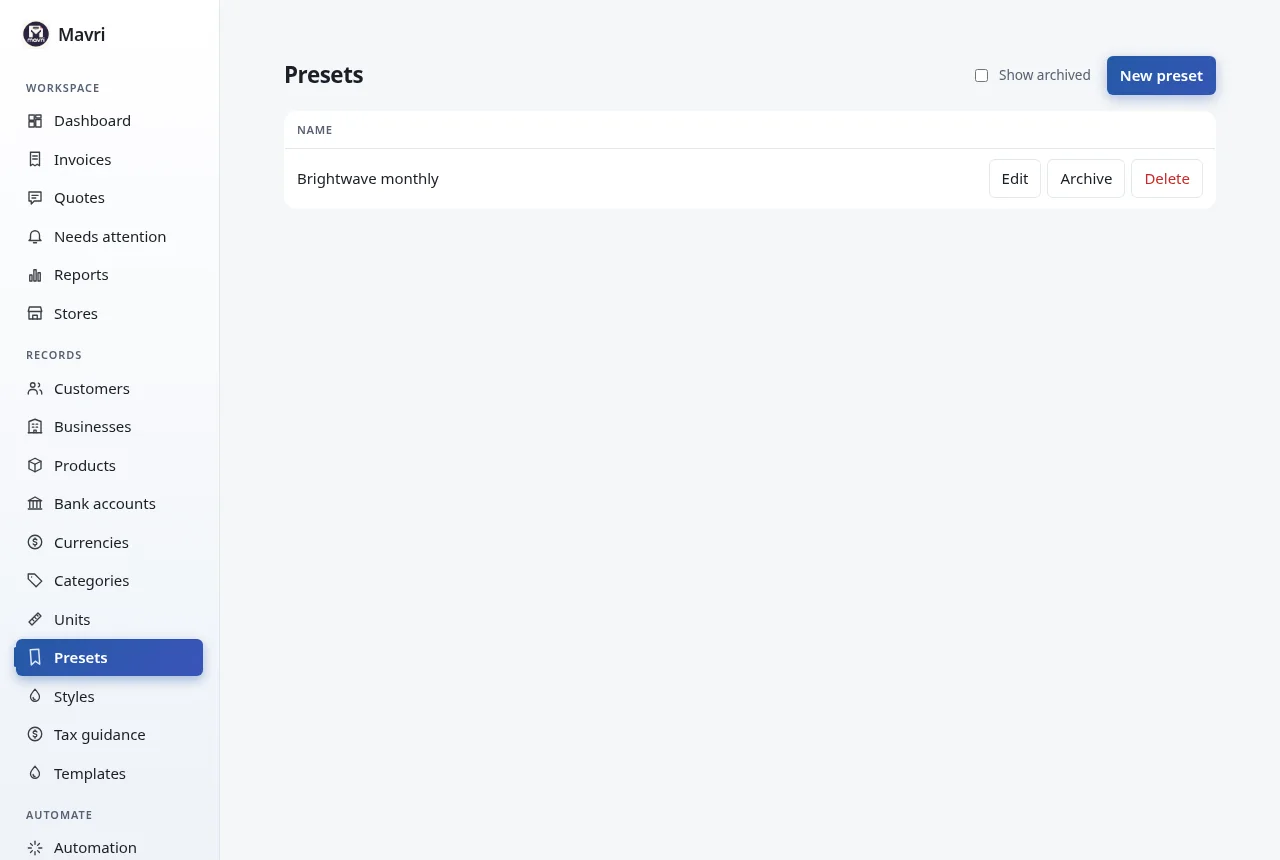
Save presets

A preset is a saved combination of business, customer, currency, bank and notes. Start a document from it to fill those fields in one step.

  • Handy for a client you bill every month.
Presets: saved combinations of business, customer, currency, bank and notes. Fictional demo data.

Speed-ups · 21 of 25

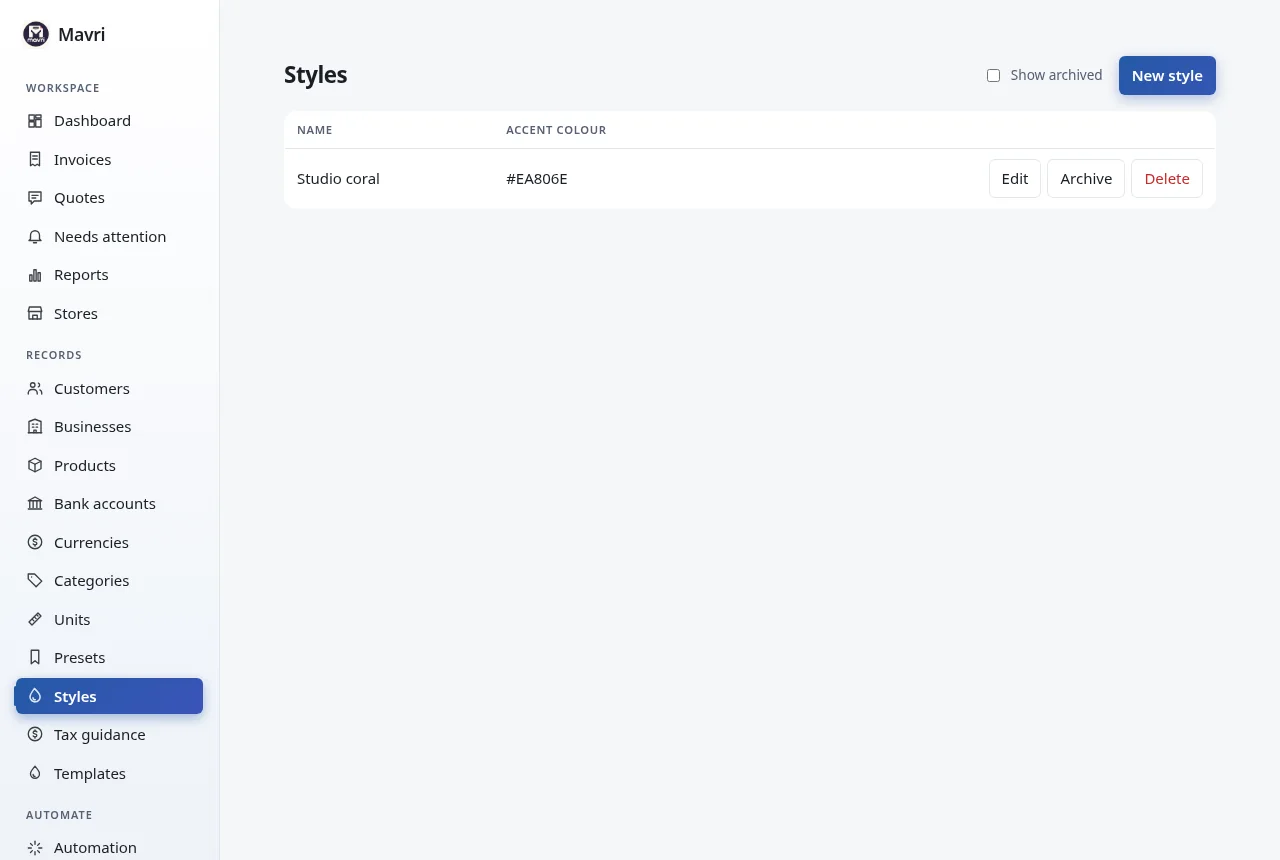
Design your document style

A style stores accent colour, font, text size, page size and which columns to show. Apply one to a document to copy that look.

  • Invoices use the chosen style’s accent colour on screen and on paper.
Saved document styles: accent colour, font, text size, page size and visible columns. Fictional demo data.

Insight · 22 of 25

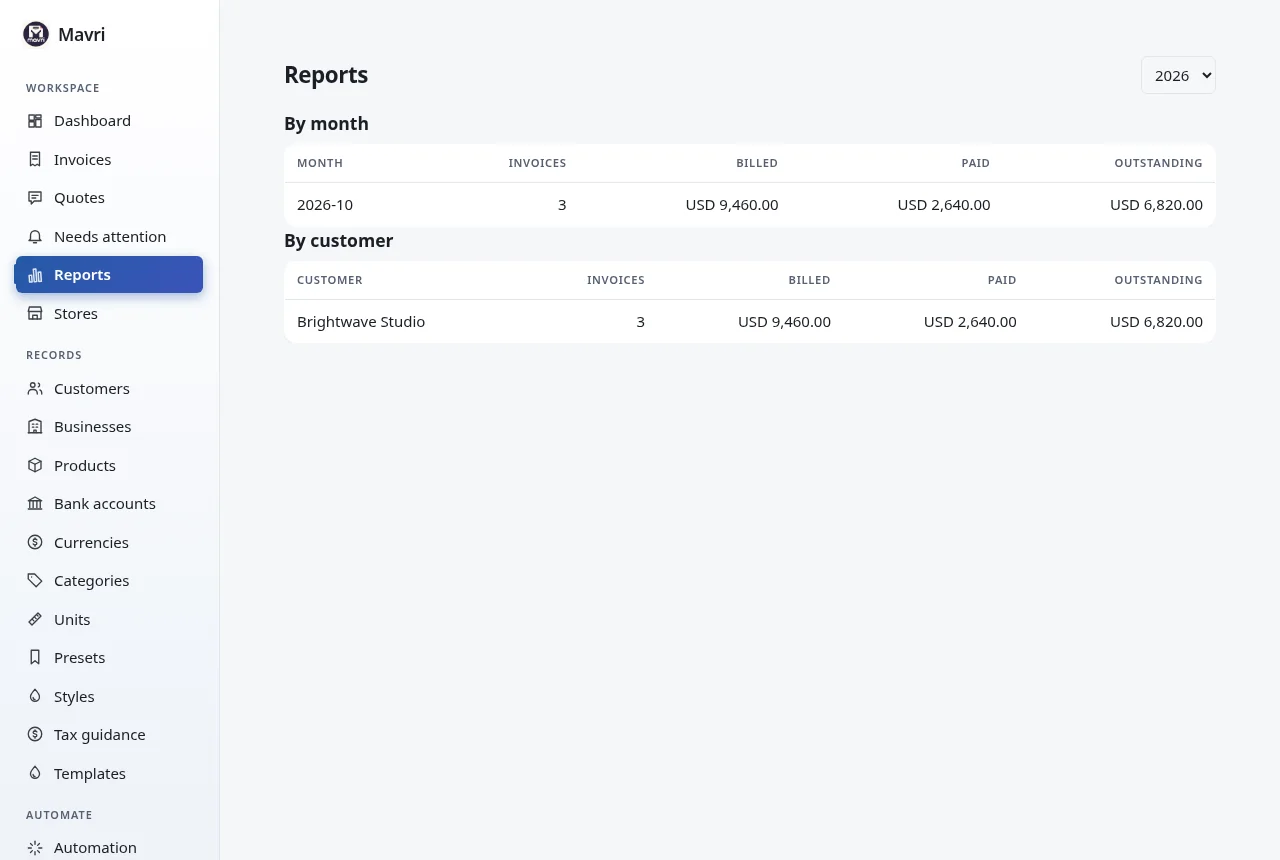
Review reports

Reports add up billed, paid and outstanding amounts by month and by client for a chosen year, per currency.

  • Use them for a quick view of the year; they are not accounting statements.
Billed, paid and outstanding totals by month and by client for a chosen year. Fictional demo data.

Automation · 23 of 25

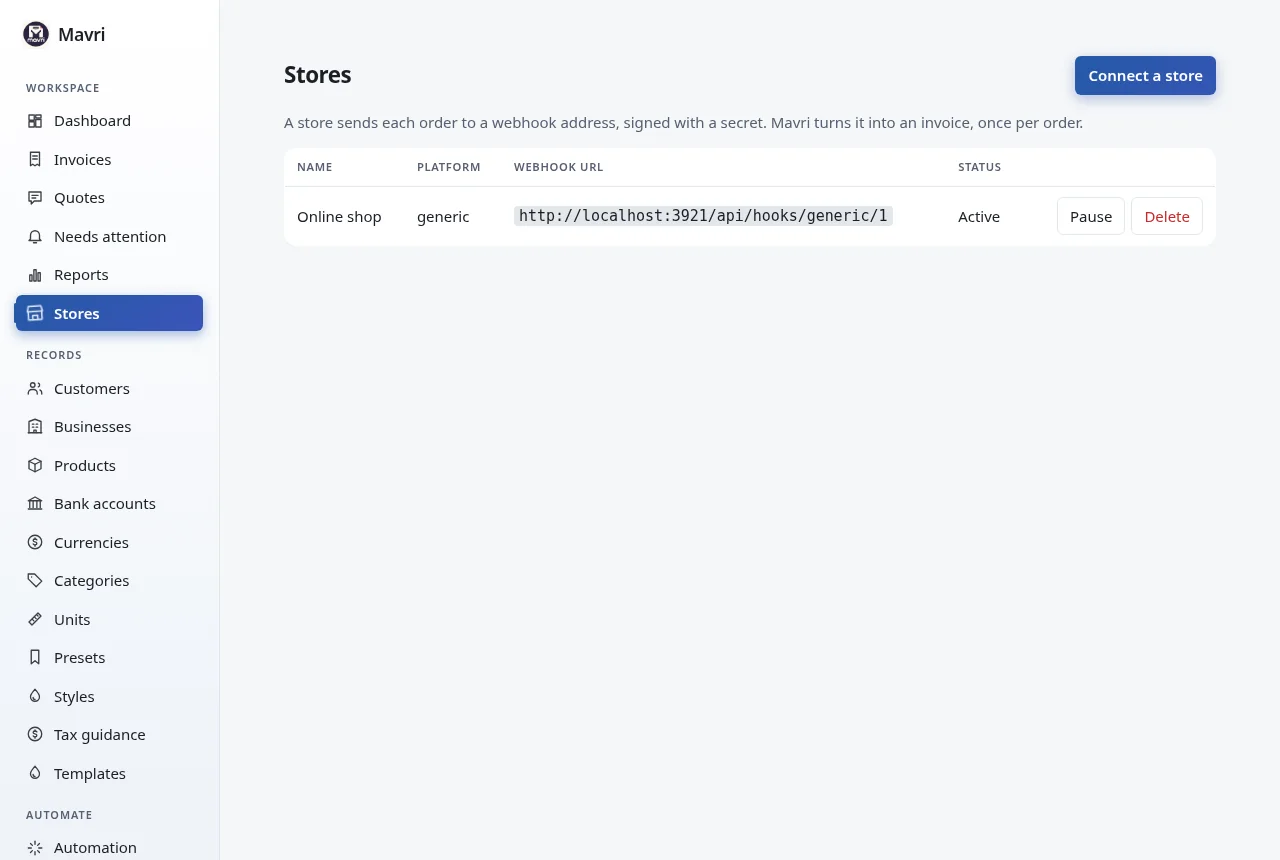
Connect an online store

Stores connect a shop. Connect a store, then copy the webhook URL and the signing secret (shown once) into Shopify, WooCommerce or your own system. Each order becomes an invoice, exactly once.

  • A store supplies the business, currency, bank account, style and default tax.
  • Pause a connection at any time.
  • See the API and webhooks guide.
Store connections with webhook URL and signing secret for Shopify, WooCommerce or other senders. Fictional demo data.

System · 24 of 25

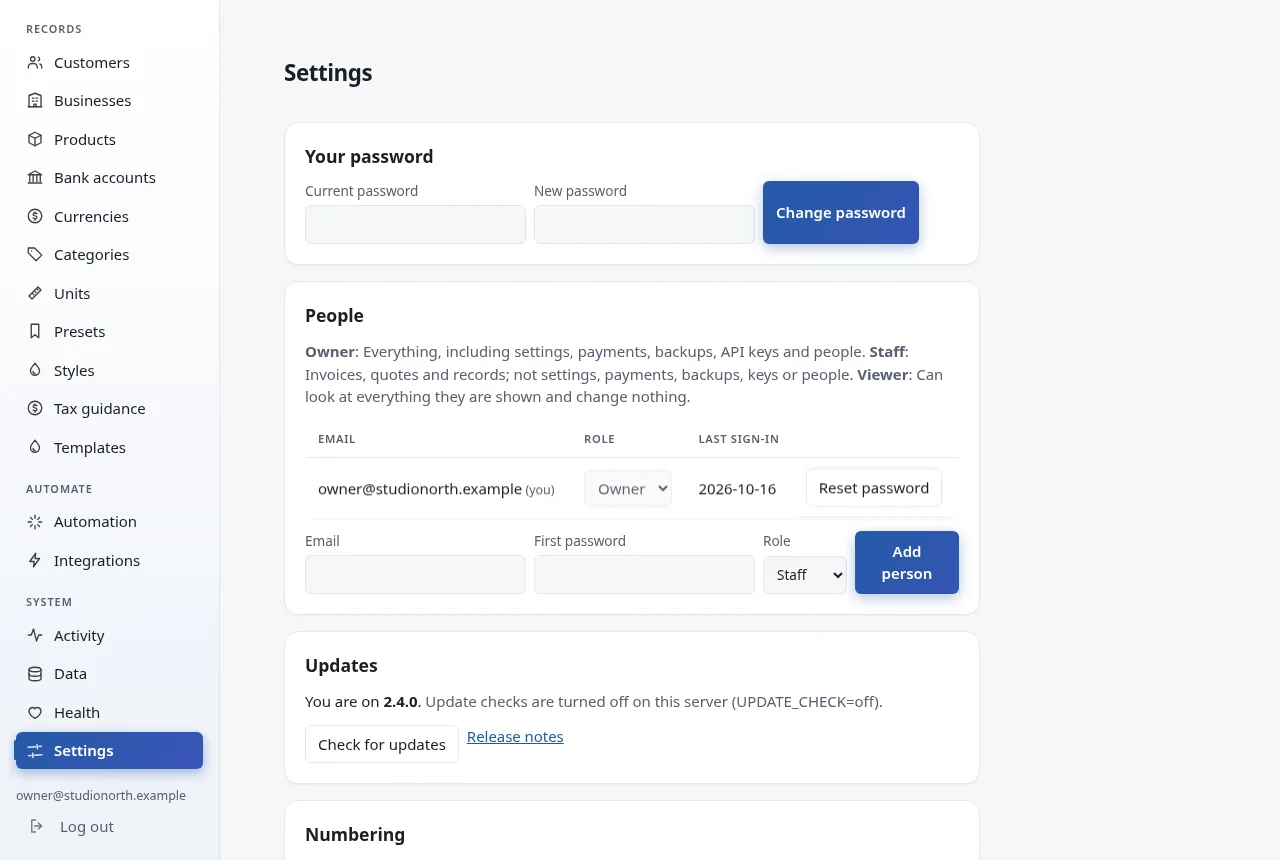
Tune Settings, backups and updates

Settings holds invoice and quote number prefixes, and switches that hide features you do not use (quotes, presets, styles, reports, UBL and XRechnung export). It also has Backup, API keys and Updates.

  • Backup downloads your records as one file and restores from one. Accounts, API keys and store connections are not included.
  • API keys let scripts and tools talk to Mavri; the secret is shown once.
  • Updates shows your version and whether a newer one is published. The check is optional: this screenshot was taken with UPDATE_CHECK=off, so it says checks are turned off.
Settings for numbering, feature switches, backup, API keys and updates. Fictional demo data.

Appearance · 25 of 25

Light and dark themes

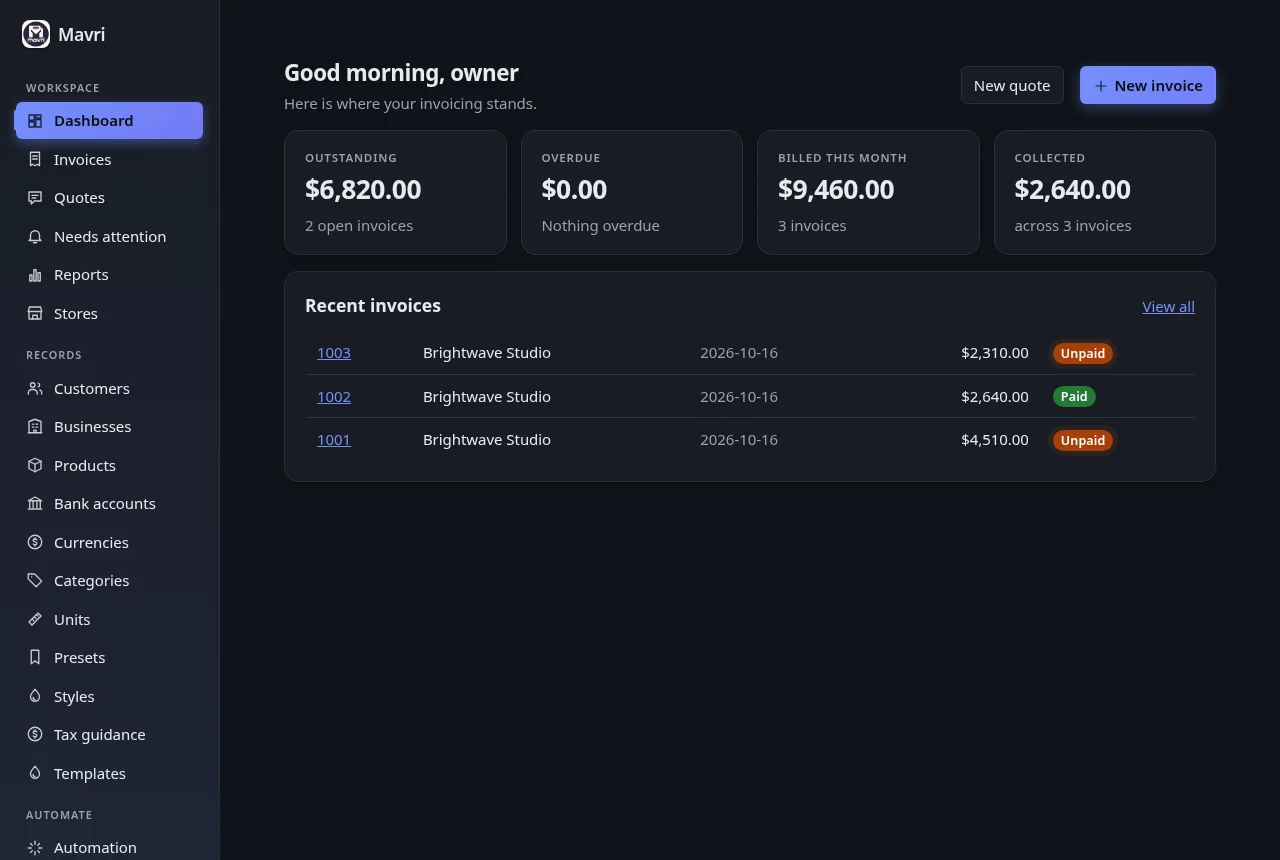
Mavri follows your system’s light or dark preference. Printed invoices are always black on white with no animation.

  • Motion respects your system’s reduced-motion setting.
The invoice list in Mavri’s dark theme. Fictional demo data.